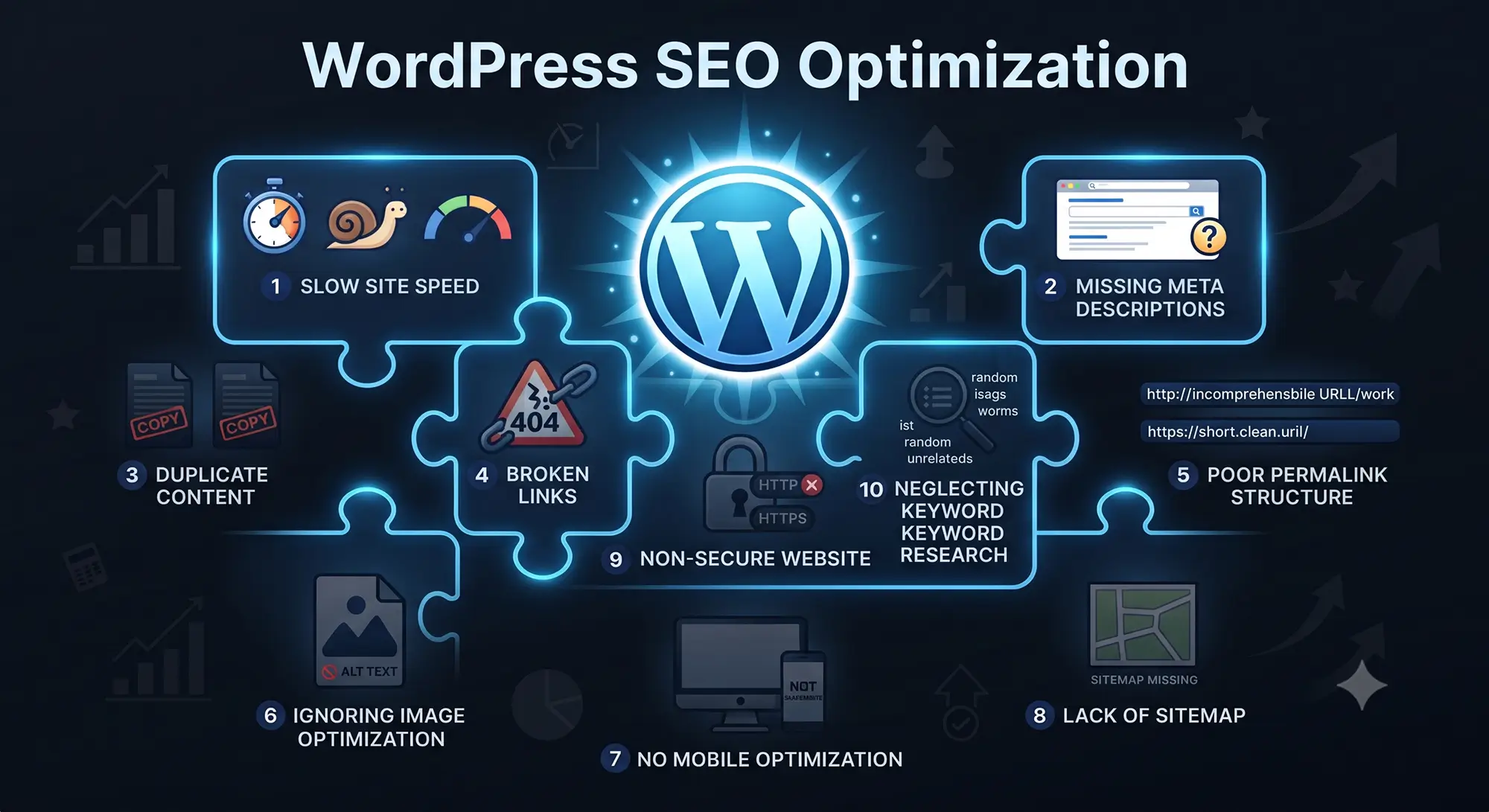
WordPress gives you all the tools needed to rank well in search engines. However, having the right tools doesn’t automatically mean they’re being used correctly. In fact, most WordPress websites I audit as a developer are unknowingly making at least two or three of the mistakes listed below — and often, these are the exact reasons their rankings are stuck.
The good news is that nearly every one of these mistakes is fixable, and some take only a few minutes to correct. In this guide, I’ll walk you through the 10 most common WordPress mistakes that hurt SEO, along with practical steps to fix each one.
1. Leaving “Discourage Search Engines” Enabled
This is, without a doubt, one of the most damaging mistakes on this list, simply because it makes your entire site invisible to Google. WordPress includes a setting meant to block search engines during development, but it’s often left on by accident after the site goes live.
How to fix it:
- Go to Settings → Reading in your WordPress dashboard
- Scroll to Search Engine Visibility
- Make sure “Discourage search engines from indexing this site” is unchecked
2. Ignoring Title Tags and Meta Descriptions
Title tags and meta descriptions are what appear in Google’s search results, and as a result, they have a huge impact on whether someone actually clicks your listing. Leaving these to auto-generate, instead of writing them intentionally, is a missed opportunity.
How to fix it:
- Use an SEO plugin like Yoast SEO to customize the title and meta description for every page and post
- Keep titles under ~60 characters and descriptions under ~155 characters
- Include your focus keyword naturally, without keyword stuffing
3. Slow Page Speed and Poor Core Web Vitals
Since Google uses Core Web Vitals as a confirmed ranking factor, a slow site doesn’t just frustrate visitors — it actively hurts your rankings. Common culprits include oversized images, unnecessary scripts, render-blocking resources, and slow hosting.
How to fix it:
- Compress and properly size all images before uploading
- Use a caching plugin (but never run more than one at a time, since they conflict)
- Choose quality hosting instead of the cheapest available plan
- Test regularly with Google PageSpeed Insights
4. Not Using an SEO Plugin Properly
Simply installing an SEO plugin like Yoast SEO isn’t enough on its own. Many site owners install it, leave the default settings untouched, and assume the job is done.
How to fix it:
- Complete the Yoast SEO configuration wizard fully
- Set a focus keyphrase for every important page and post
- Pay attention to the readability and SEO analysis scores, and act on the suggestions
- Regularly review and update older content’s SEO settings
5. Missing or Broken XML Sitemap
If your sitemap is missing, outdated, or full of errors, you’re essentially making it harder for search engines to discover and index your content properly.
How to fix it:
- Generate an XML sitemap using Yoast SEO (found under Yoast SEO → General → Features)
- Submit the sitemap URL to Google Search Console and Bing Webmaster Tools
- Recheck it after major content updates or site restructuring
6. Duplicate Content Issues
WordPress can unintentionally create duplicate content in several ways — for instance, category and tag archive pages often display the same posts as your main blog page. This confuses search engines about which version should actually rank, which wastes crawl budget and dilutes your SEO authority.
How to fix it:
- Use canonical tags (Yoast SEO handles this automatically in most cases)
- Avoid publishing near-identical content across multiple pages
- Set thin or duplicate archive pages to “noindex” where appropriate
7. Not Using SSL (HTTPS)
Every WordPress site should be running on HTTPS in 2026. Otherwise, browsers display “Not Secure” warnings, which tank click-through rates and damage user trust, ultimately hurting rankings as well.
How to fix it:
- Install an SSL certificate (most hosts, such as Kinsta and SiteGround, offer this for free)
- Redirect all HTTP URLs to HTTPS
- Update internal links and images to use HTTPS versions
- Monitor Google Search Console for any mixed-content warnings
8. Poor Image Optimization
Uploading oversized images or skipping alt text are both extremely common — and both directly hurt SEO. Large files slow down your site, while missing alt text is a lost opportunity for image search visibility and accessibility.
How to fix it:
- Resize images to the actual dimensions they’ll be displayed at
- Compress images before uploading, or use a plugin like Smush or ShortPixel
- Use descriptive file names (e.g.,
wordpress-seo-mistakes.jpginstead ofIMG_9876.jpg) - Write clear, descriptive alt text for every image
9. Weak or Missing Internal Linking
Internal links help search engines understand your site’s structure, discover new content, and distribute ranking power across your pages. Without them, valuable content can end up isolated and harder to rank.
How to fix it:
- Link to relevant older posts whenever you publish new content
- Use descriptive, keyword-relevant anchor text instead of generic phrases like “click here”
- Regularly audit your site for orphaned pages with no internal links pointing to them
10. Writing for Search Engines Instead of Real Users
Perhaps the most subtle mistake on this list is producing content purely to target keywords, rather than genuinely helping the reader. Search engines have become increasingly good at detecting this, and consequently, such content tends to underperform even when technically “optimized.”
How to fix it:
- Write for the actual person searching first, and optimize for SEO second
- Focus on answering the search intent behind a keyword, not just repeating it
- Use keywords naturally within helpful, well-structured content
Final Thoughts
Most WordPress SEO problems aren’t caused by complicated technical failures — instead, they come from small, overlooked settings and habits that quietly add up over time. By fixing even a few of the mistakes above, many site owners see a noticeable improvement in both rankings and user experience within a matter of weeks.
As a WordPress developer, I build SEO best practices into every project from day one, rather than treating them as an afterthought. If you’d like a professional audit of your WordPress site’s SEO health, feel free to get in touch.
Frequently Asked Questions (FAQs)
Q1. What is the most damaging WordPress SEO mistake?
Leaving the “Discourage search engines from indexing this site” setting enabled is often the most damaging, since it makes your entire site invisible to Google.
Q2. Can Yoast SEO fix all these mistakes automatically?
Yoast SEO helps significantly with things like sitemaps, canonical tags, and meta descriptions, but several mistakes — such as slow speed, poor content quality, and weak internal linking — still require manual attention.
Q3. How often should I check my WordPress site for SEO issues?
Ideally, run a basic SEO check monthly and a more thorough technical audit every few months, especially after major updates or content changes.
Q4. Does duplicate content get a manual Google penalty?
Not usually a manual penalty, but duplicate content confuses search engines and dilutes ranking power, which can indirectly hurt your visibility.
Q5. Is a slow website really an SEO issue, or just a user experience issue?
Both. Since Google uses Core Web Vitals as a ranking factor, site speed directly affects SEO in addition to user experience and conversions.